
Help guide
How to manage your order
Everything you can do after you order, in one place: follow your parcel, download your portrait, fix your address, or ask us to change something in your portrait. No account and no password — just your order number.
Or tap “Track My Order” at the top of any page.
Open your order
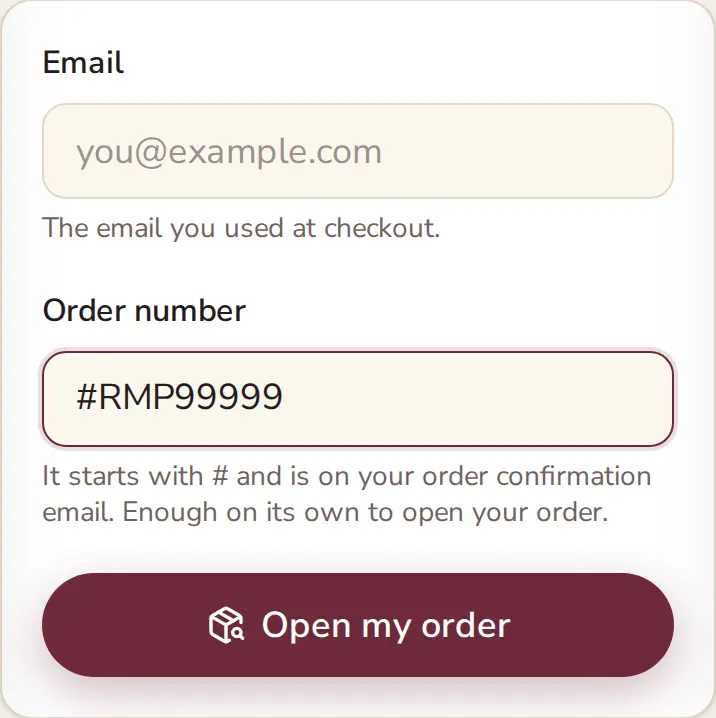
Your order number is all you need.
- Find your order number in your order confirmation email. It starts with #, like #RMP followed by a few digits.
- Go to giftedcustomart.com/track, or tap “Track My Order” at the very top of any page on our site.
- Type your order number in the “Order number” box. You can leave the email box empty.
- Tap “Open my order”. Your order opens with everything below.
Shortcut: the “Download my portrait” button in the email we send with your portrait opens your order directly, with nothing to type.
No order number?
You can still find your order with the email address you used at checkout.
- On the order page, type your email and tap “Open my order”. You’ll see your orders and where each one is.
- To download or change anything, tap “Email me a code”. We send a 6-digit code to that email.
- Type the code and tap “Show my order”. The code works for 15 minutes.
No code after a minute? Look in your spam or promotions folder. Our emails come from [email protected].
Track your parcel
The top of your order says where it is:
- Preparing your order or In production: your print is being made. Prints are made to order and usually ship within 24–48 hours.
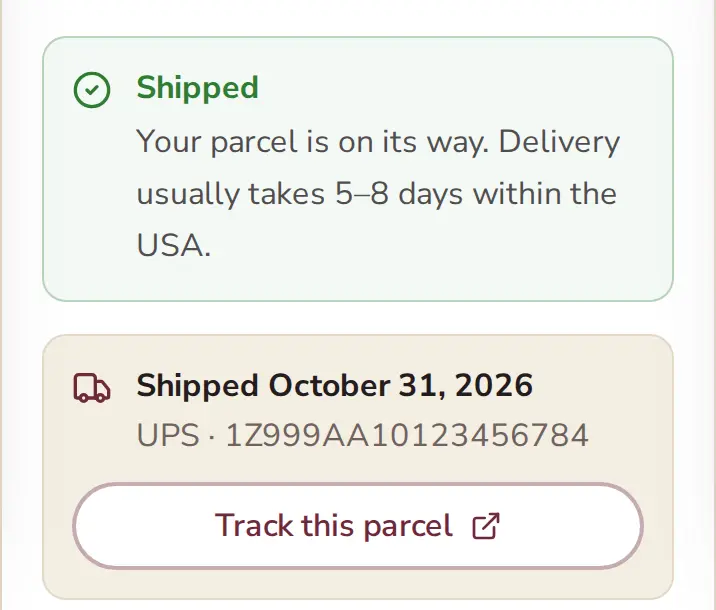
- Shipped: your parcel is on its way. You’ll see the carrier and the tracking number. Tap “Track this parcel” to follow it on the carrier’s website. Most parcels arrive within 5–8 days in the USA.
- Ready to download: a digital order. There is nothing to ship, and your file is waiting below.
We also email you the tracking number the moment your parcel ships.
Download your portrait
Every portrait you paid for can be downloaded in full quality, without the watermark, as often as you like.
- Open your order.
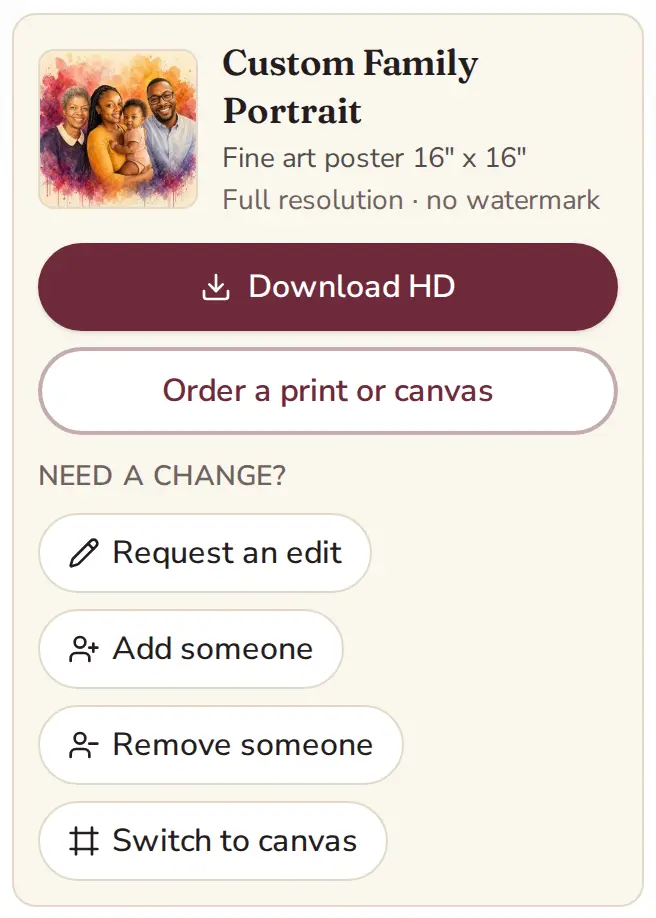
- Under your portrait, tap “Download HD”.
- On a computer, the file goes to your Downloads folder. On a phone, the picture opens or goes to your downloads: press and hold it, then choose Save or Add to Photos.
The file is print-ready, so you can also print it yourself. Want us to print it? Tap “Order a print” under the portrait to choose a poster or canvas size.
Change your shipping address
Moved, or spotted a typo? You can change where your print goes until it ships. We ship to US addresses only.
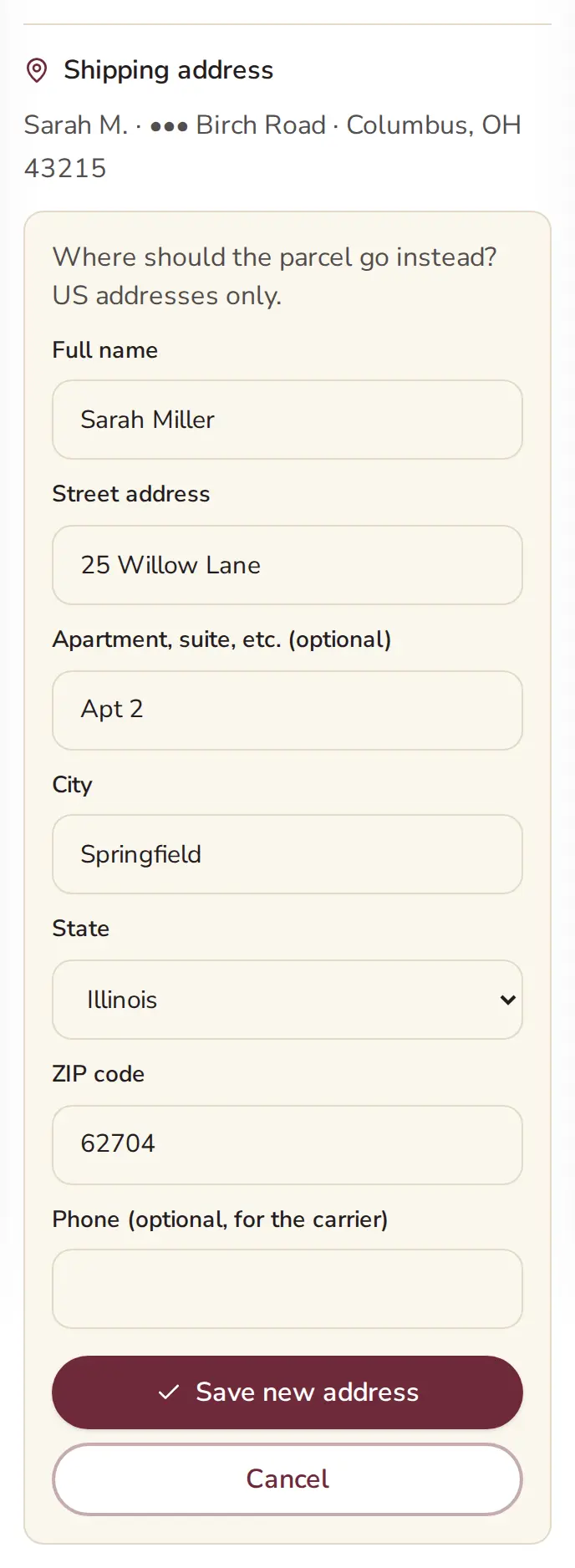
- Open your order and scroll to Shipping address.
- Tap “Change address”.
- Fill in the full name, street, city, state and ZIP code. The phone number is optional but helps the carrier.
- Tap “Save new address”. You’ll see a confirmation on the page and in your email.
For your privacy, the page only shows part of your street and name. Already shipped? The page won’t let you change it, so email us at [email protected] right away and we’ll see what the carrier can do.
Ask for an edit
Want different lettering, colours or details in the background? A real person on our team makes every change by hand.
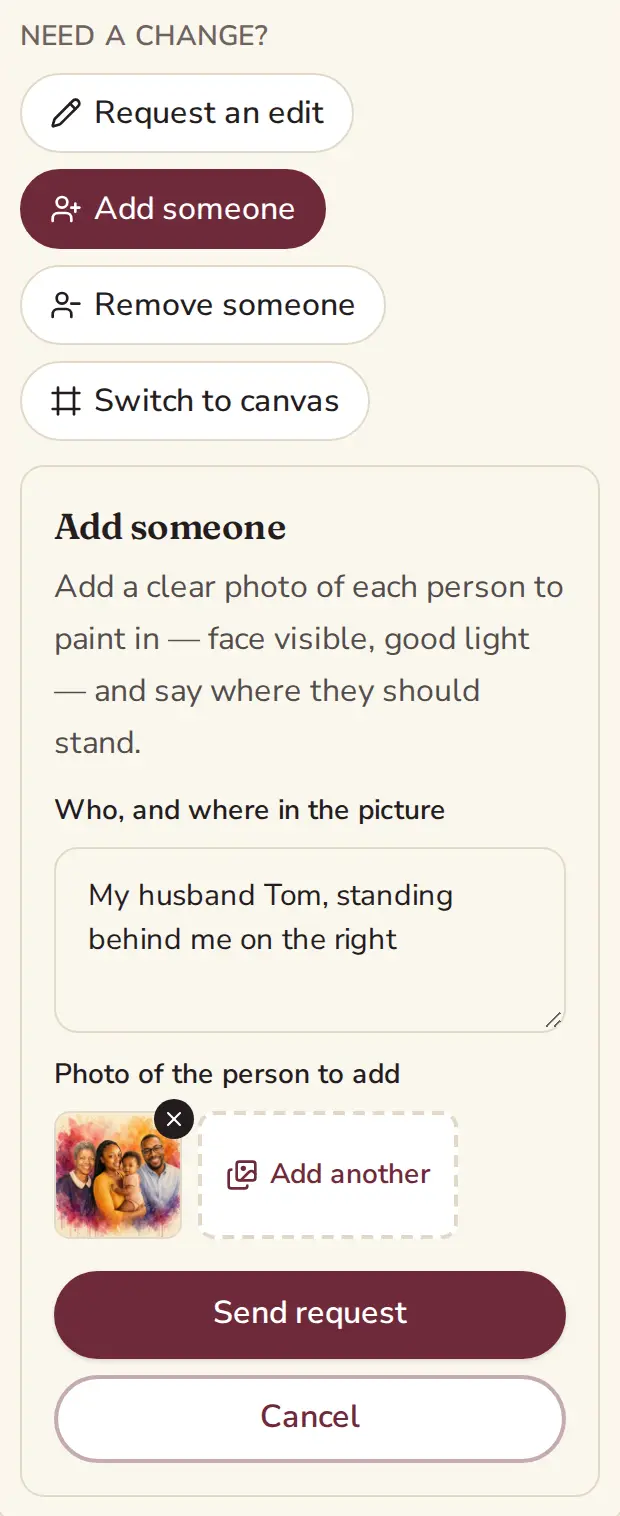
- Open your order. Under your portrait, find Need a change?
- Tap “Request an edit”.
- Tell us what to change, in your own words. For example: “Make the name read The Miller Family.” You can add a photo to show us what you mean.
- Tap “Send edit request”. We email you a receipt right away.
We usually reply within one business day and email you as soon as it’s done. The updated portrait then appears on your order page, and any print on your order is made from the new version. Faces always stay as they are in your photos.
Add someone to your portrait
Forgot someone, or a new family member arrived? We can paint them in.
- Open your order. Under your portrait, tap “Add someone”.
- Tap “Choose photo” and pick a photo of the person to add. You can add up to 4 photos.
- Tell us who they are and where they should be. For example: “My husband Tom, standing behind me on the right.”
- Tap “Send request”.
Photo tips: a clear, well-lit photo with the face looking toward the camera works best. No sunglasses, and the closer the better. A pet? Send a photo of the pet the same way.
Remove someone from your portrait
- Open your order. Under your portrait, tap “Remove someone”.
- Tell us who should be left out. For example: “The man on the far left.”
- Tap “Send request”. We repaint the portrait without them and email you when it’s ready.
Upgrade to a canvas
Bought the digital download? Your order page shows Upgrade to a canvas under the portrait, with three sizes. What you paid for the digital copy is taken off the price.
- Open your order and find Upgrade to a canvas under your portrait.
- Pick a size and tap “Order canvas”.
- Pay on our secure checkout. Shipping in the USA is free, and your canvas is made from the same portrait.
Ordered a poster that hasn’t shipped yet? Tap “Switch to canvas” under the portrait and tell us the size you’d like. We email you the difference to pay before we print.
Follow your requests
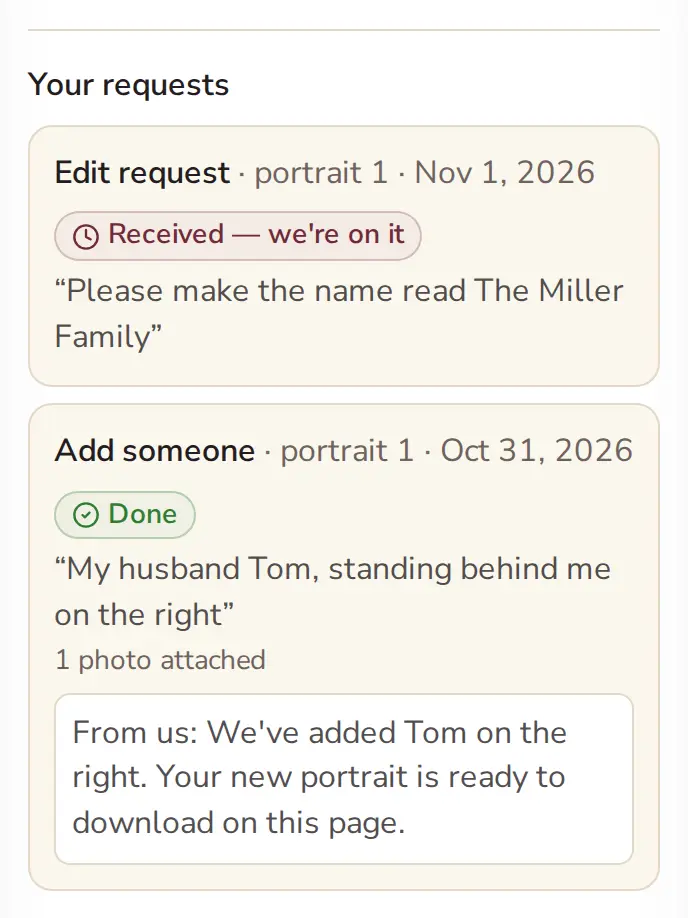
Everything you asked for is listed under Your requests, at the bottom of your order:
- Received — we’re on it: a person on our team has it.
- Done: the change is made. Any note from us is shown underneath.
- Couldn’t do this one: we explain why, and you can reply to our email to talk it through.
We email you at every step. You can have up to 3 requests waiting on the same portrait. Have more to add? Just reply to our email.
Good to know
- Keep your order number private. It opens your order page, so share it only with people you trust.
- We tell you about every change. Each address change or request sends an email to the address on your order, so you always know what was asked.
- Something not right? See our Refunds & Replacements policy, or just ask us.
Still need help?
Email [email protected] or call +1 (505) 230-1963, Monday to Friday, 9:00 AM–6:00 PM EST. Please include your order number.
Open my order